This documentation is provided for informational purposes only and demonstrates how to configure and use our API with third-party AI chat interfaces. Any third-party software, websites, or services mentioned are not operated, controlled, or endorsed by us.
Introduction to LobeChat
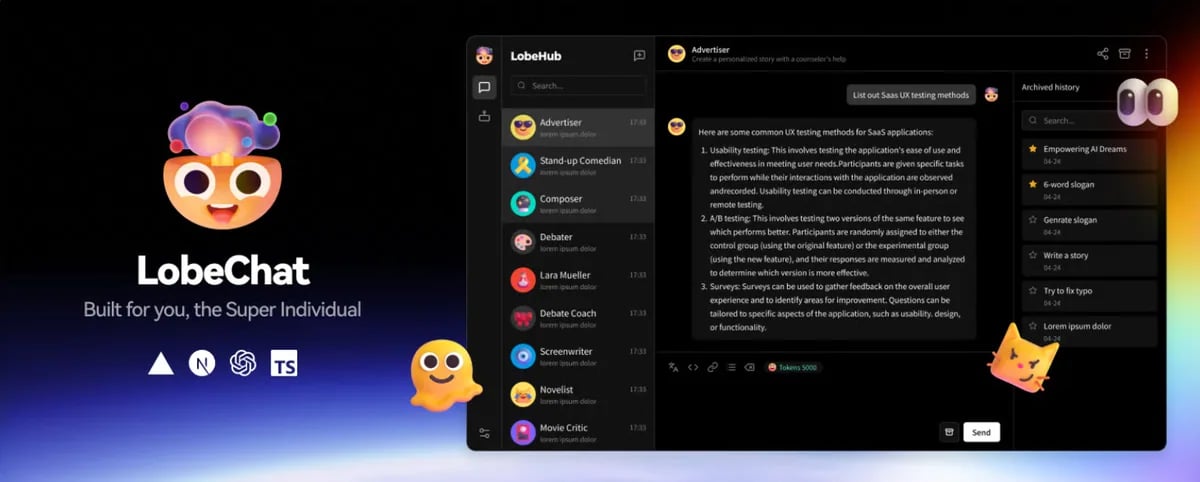
- Multi-provider model support via OpenRouter protocol
- Plugin ecosystem for extended functionality
- Customizable conversation management
- Cross-platform accessibility
Step
1
Access LobeChat
Navigate to https://lobechat.com and authenticate using your preferred sign-in method (e.g., GitHub, Google, or email). Configure some account settings according to your own preferences.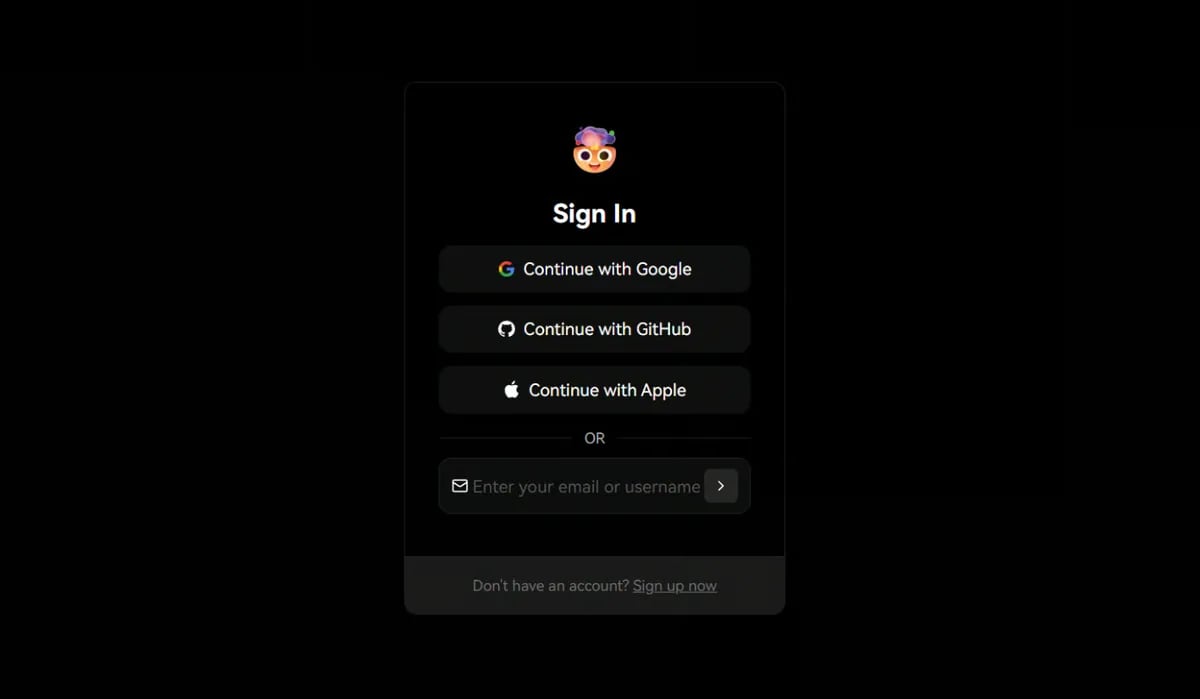
2
Navigate to AI Service Provider Settings
- Locate and click your user avatar in the top-left corner of the interface.
- Select “Settings” from the dropdown menu.
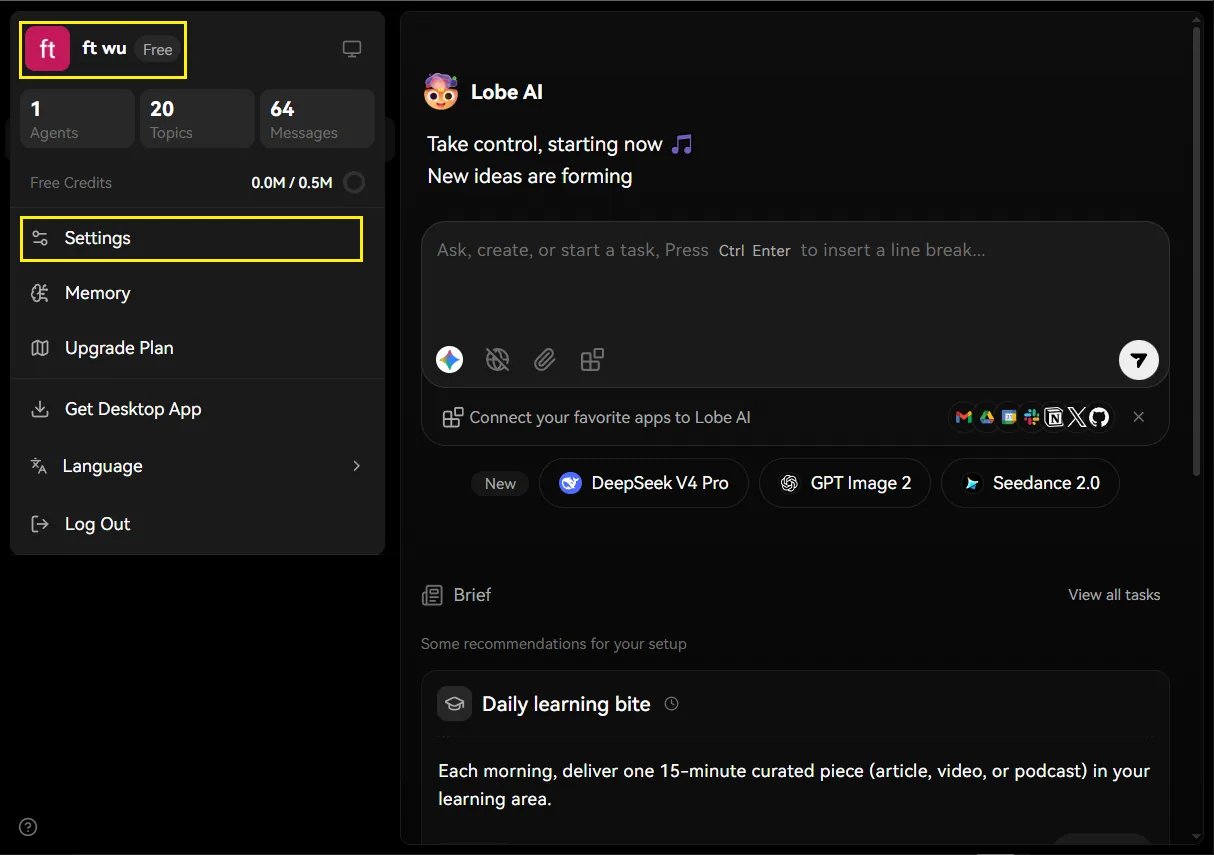
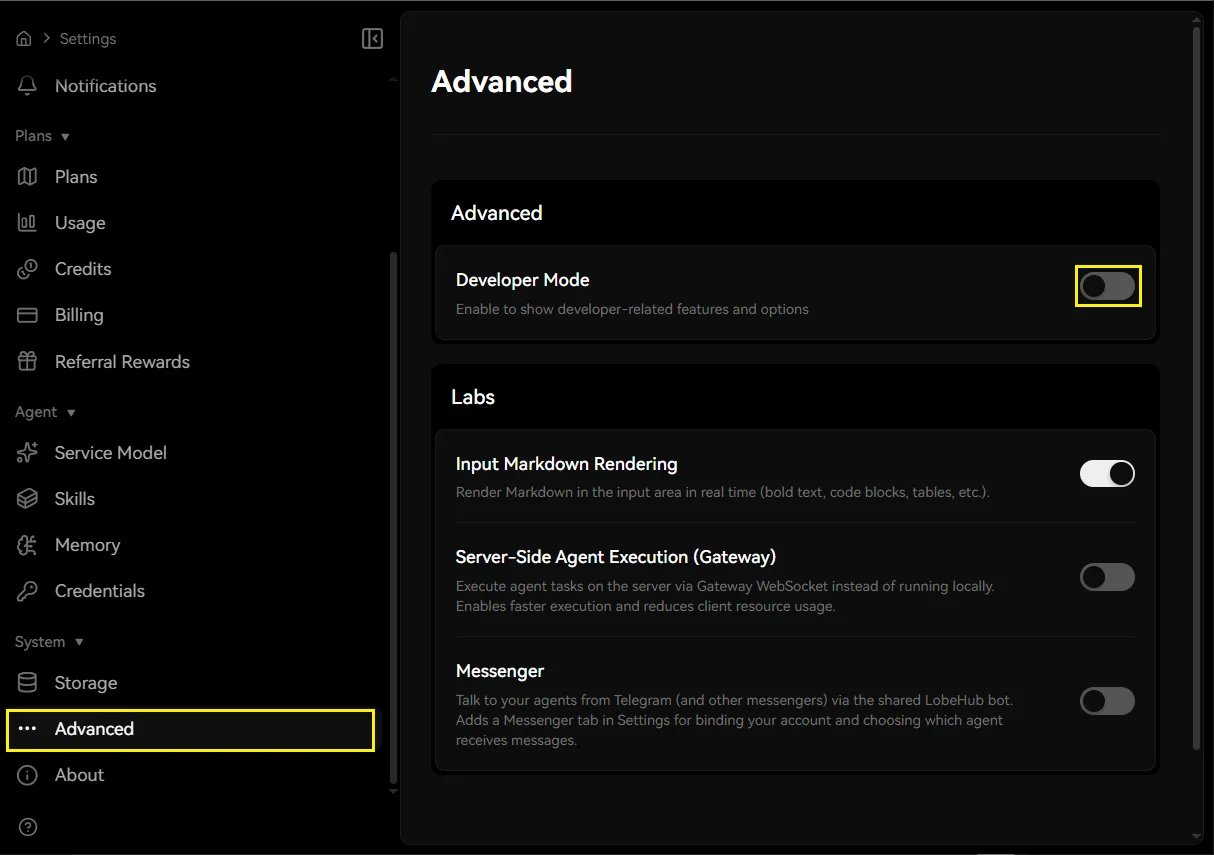
- In the Settings panel, navigate to “Advanced” in the bottom-left sidebar.
- Enable Developer Mode.
3
Configure x6.ai API Connection
Click Provider → OpenRouter, then configure the API Key and API Proxy URL: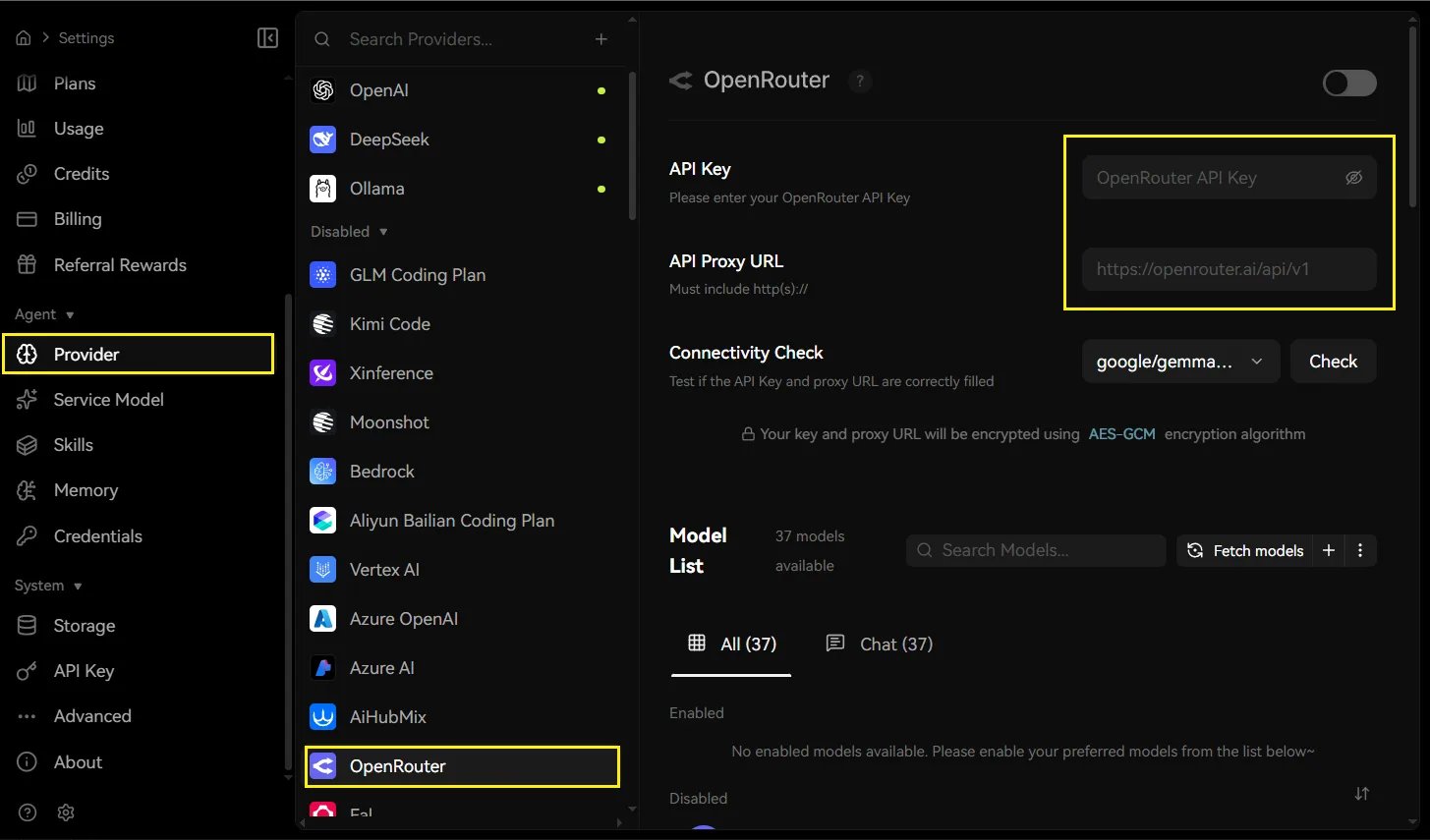
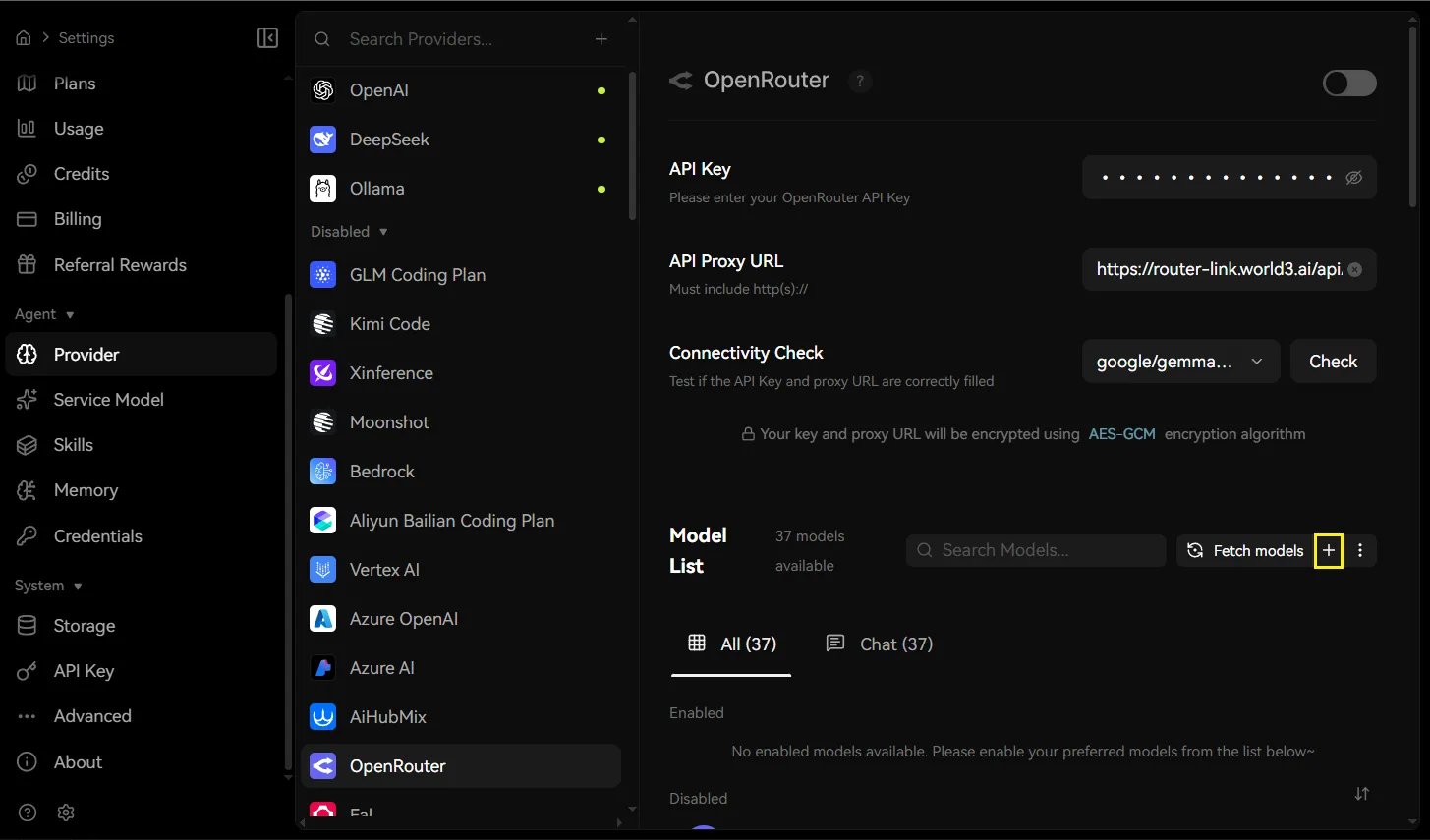
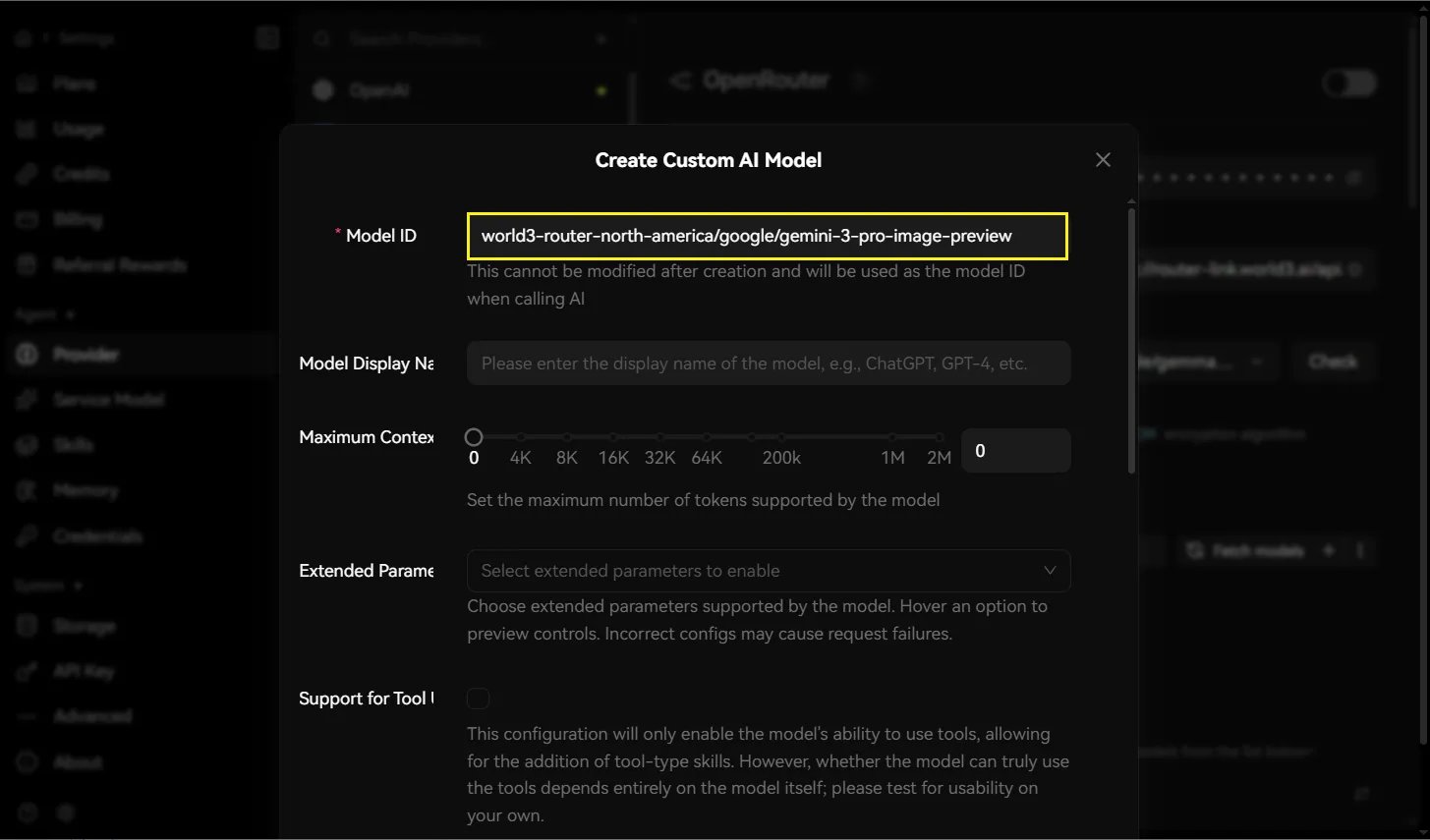
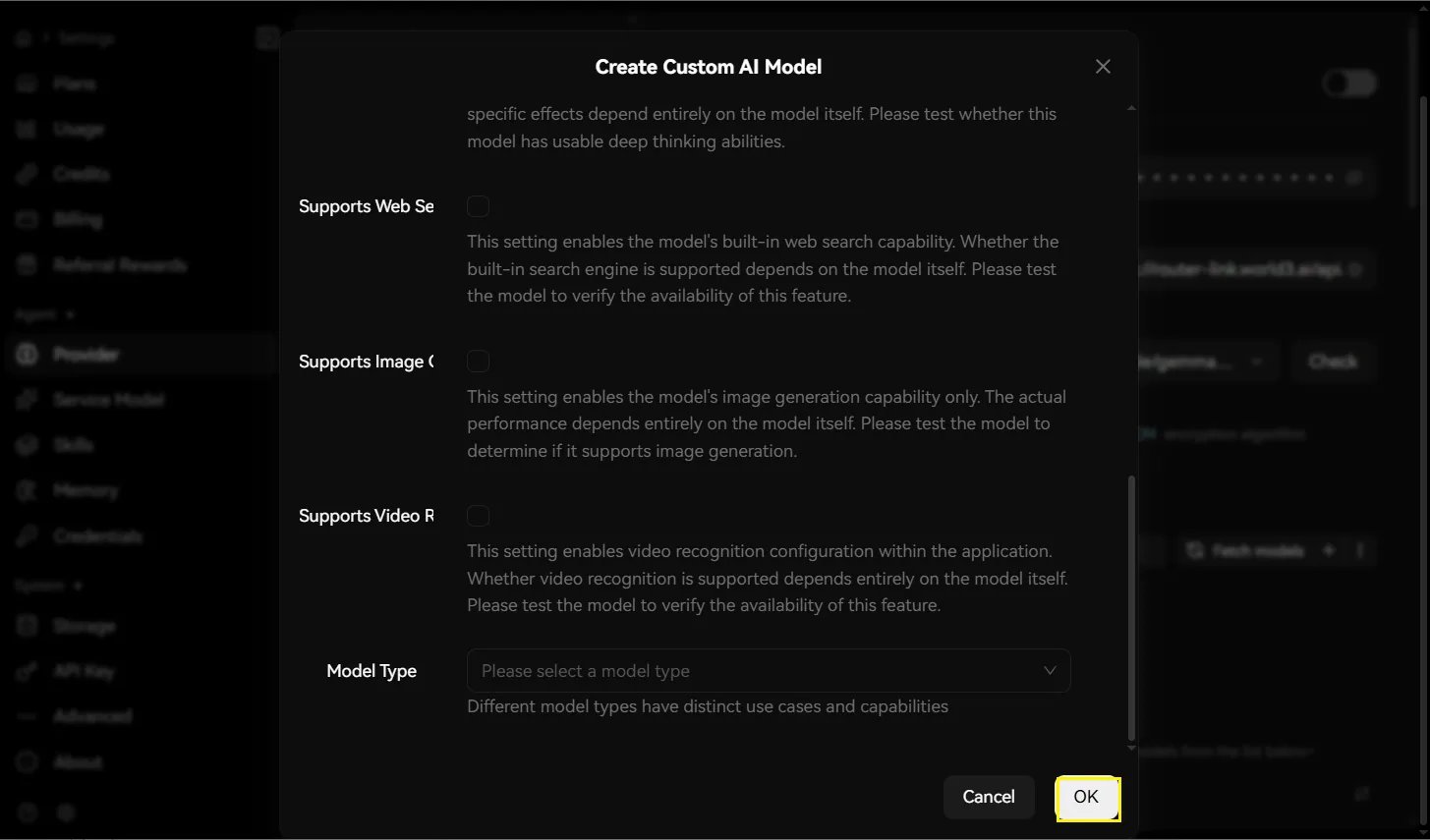
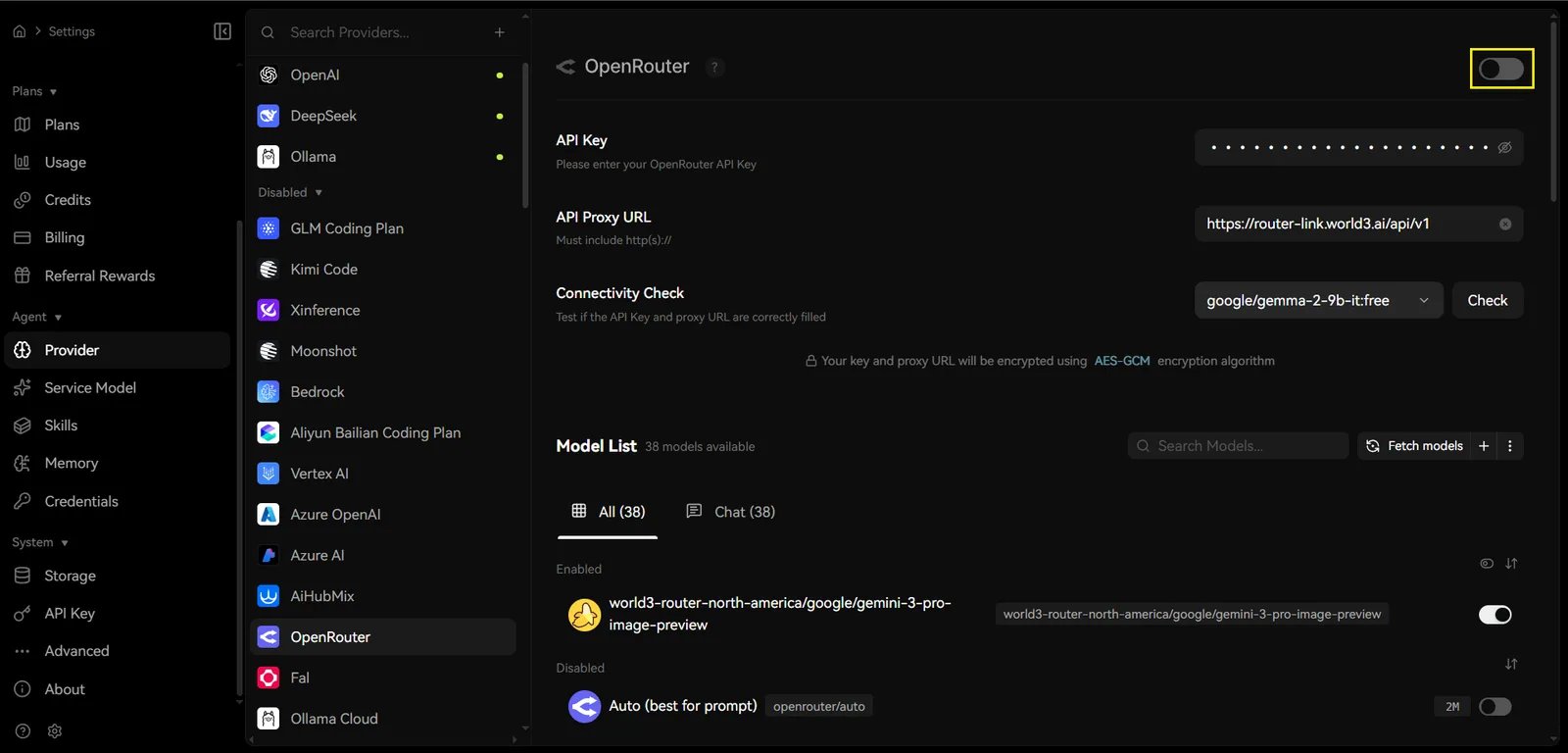
After entering the credentials, click the ”+” button adjacent to add a custom model configuration.
Model Registration
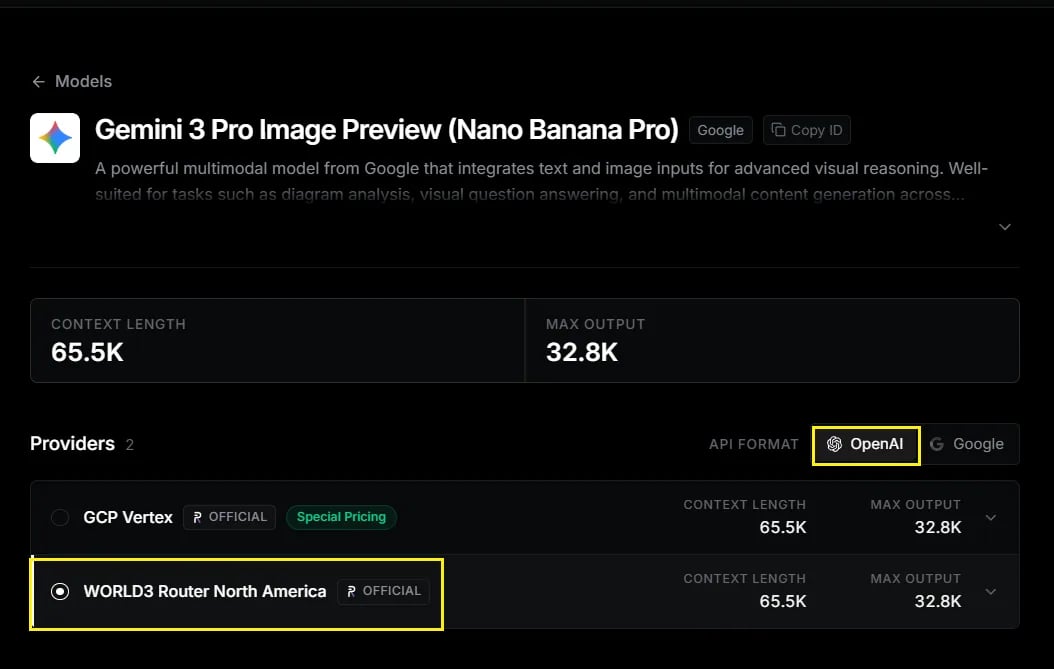
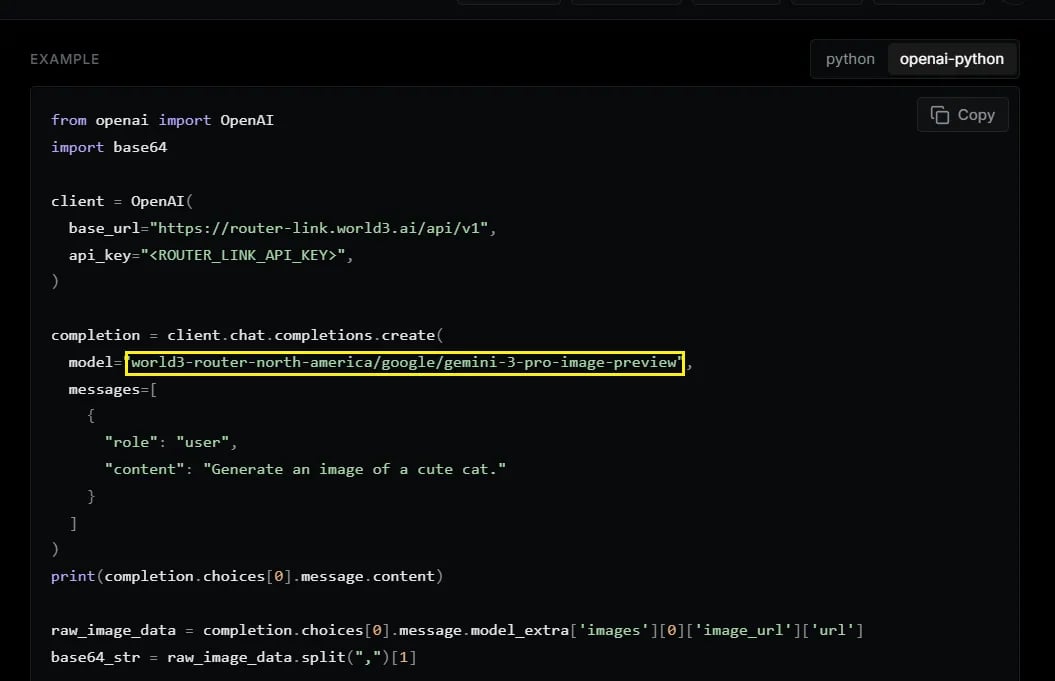
Specify the model you wish to utilize. This example demonstrates configuration for Gemini 3 Pro Image Preview.For optimal compatibility, please select API format: OpenAI.
Provider: Default
gemini-3-pro-image-previewEnable the Provider
Toggle the OpenRouter master switch in the top-right corner to enable the provider connection.4
Initiate a Conversation
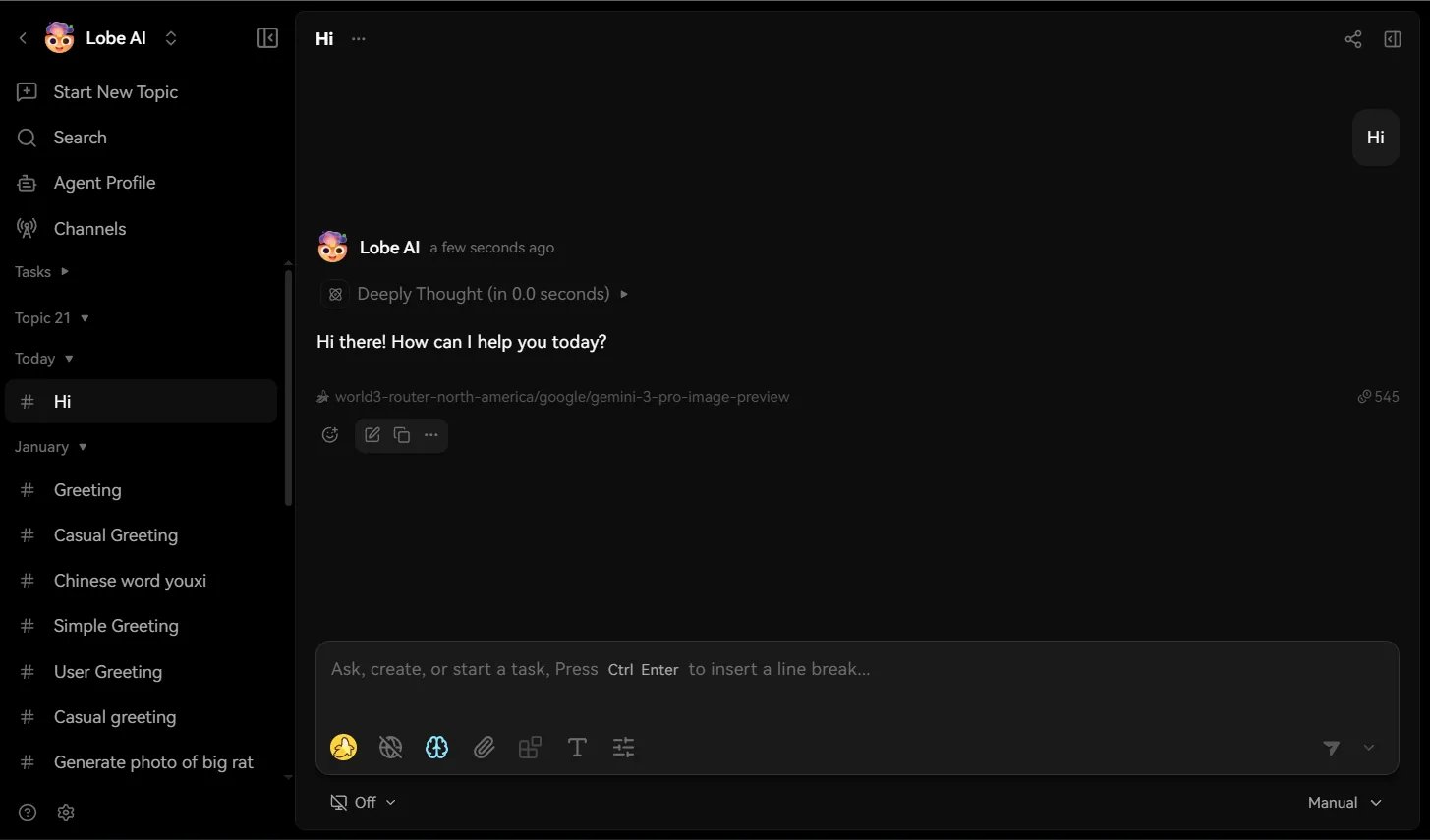
- Click the Home button on the left sidebar and select a model under OpenRouter.
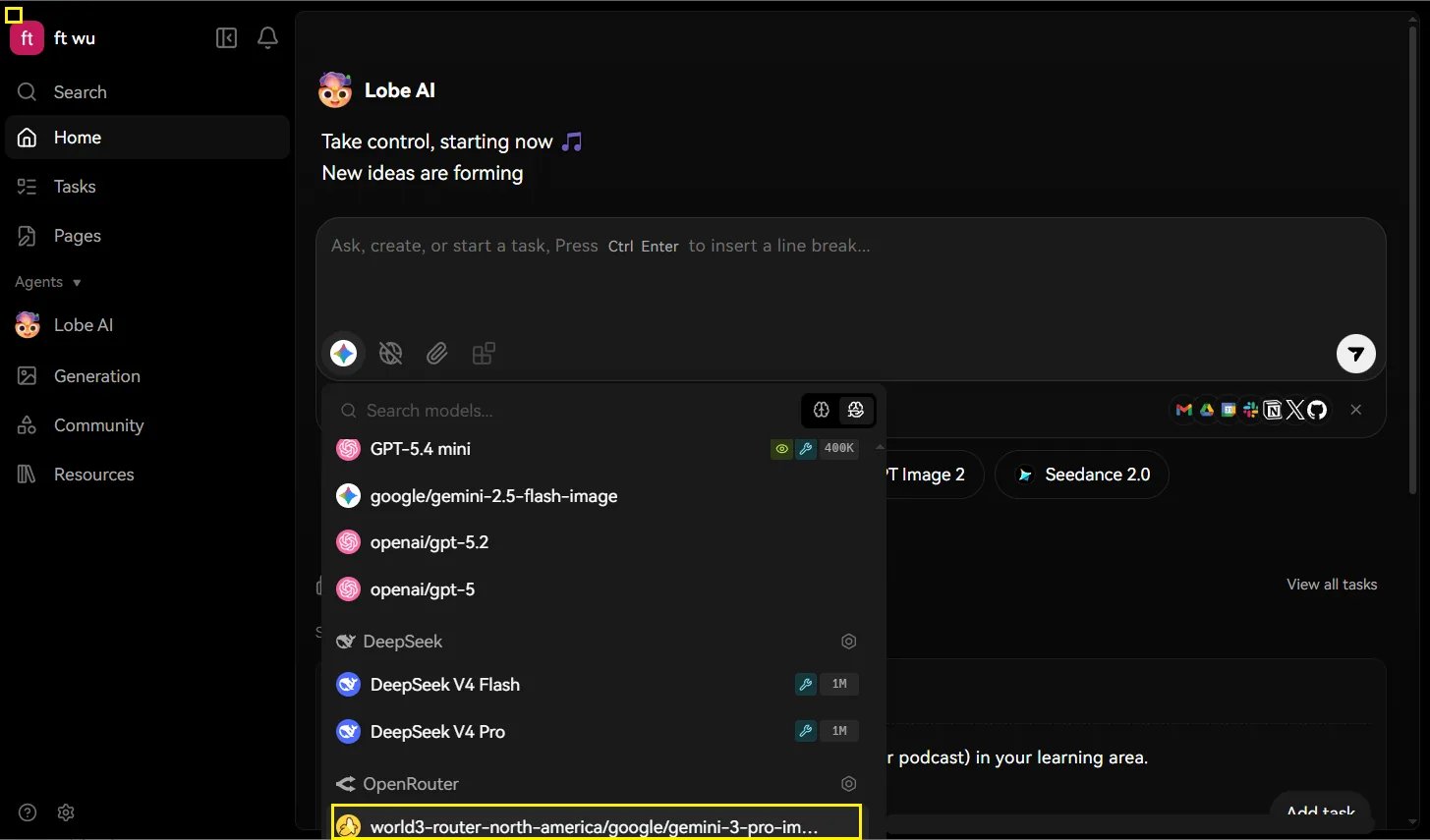
- You can start using it now.